Showing posts with label Image Processing. Show all posts

Thursday, October 28, 2010

Capture Web Page Scrolling Screen

I Have found a Firefox Add ons to Capture Web Page Scrolling Screen for long time, but a tragedy happen and i must reinstall my operating system and forgot it's name.

What the hell is the name. I search on google and cannot found the add ons because it was less popular in search engine.

A day later i remember the name and suddenly i install it again. The name is ScreenGrab. it was popular add ons to Capture Web Page Screen and it can be doing task like Capture Web Page Scrolling Screen.

Here it is the result of ScreenGrab


Monday, May 18, 2009

Sintaks Deteksi Batas dengan Delphi

Deteksi batas adalah suatu teknik pengolahan citra yang bertujuan untuk mendapatkan obyek citra tepat pada batas obyek tersebut. Teknik ini bekerja pada citra biner dengan menjelajahi citra, misalnya dari bagian atas. Jika baris pertama paling atas semua piksel berwarna putih, maka ukuran tinggi citra dipotong pada bagian baris tersebut. Pemotongan tinggi citra berakhir bila ada ditemukan piksel berwarna hitam. Pemotongan juga dilakukan dari sisi bawah, kiri dan kanan. Gambar 2.8 berikut ini ilustrasinya (abaikan garis hitam yang membatasi lebar dan tinggi citra) :
(a)


(b)
Gambar Ilustrasi deteksi batas (a) citra awal, (b) citra hasil deteksi batas.

Berikut adalah Sintaks Deteksi Batas dengan Delphi


procedure Tform1.DeteksiBatas(Image:TBitmap);
var
x,y:Integer;
Arr:array of Boolean;
Temp,Max,TempStart,Start,TempFinish, Tempo:Integer;
begin
SetLength(Arr,Image.Height);
for y:=0 to Image.Height-1 do
begin
Arr[y]:=False;
for x:=0 to Image.Width-1 do
if Image.Canvas.Pixels[x,y]<>$ffffff then
begin
Arr[y]:=True;
end;
end;

Max:=0;
Temp:=0;
Tempo:=0;

for y:=0 to Length(Arr)-1 do
begin
if Arr[y] then
begin
if Tempo=0 then
begin
TempStart:=y;
end else
if Temp>Max then
begin
Max:=Temp;
Start:=TempStart;
TempFinish:=y;
end else if Temp=Max then
begin
Max:=Temp;
Start:=TempStart;
TempFinish:=y;
end;
inc(Tempo);
end;
inc(Temp);
end;
Temp:=TempFinish-TempStart;
Image.Canvas.Draw(0,-start,Image);
Image.Height:=Temp+1;

SetLength(Arr,Image.Width);
for x:=0 to Length(Arr)-1 do
begin
Arr[x]:=False;
for y:=0 to Image.Height-1 do if Image.Canvas.Pixels[x,y]<>$FFFFFF then
begin
Arr[x]:=True;
end;
end;
Max:=0;
Temp:=0;
Tempo:=0;

for x:=0 to Length(Arr)-1 do
begin
if Arr[x] then
begin
if Tempo=0 then
begin
TempStart:=x;
end else
if Temp>Max then
begin
Max:=Temp;
Start:=TempStart;
TempFinish:=x;
end else if Temp=Max then
begin
Max:=Temp;
Start:=TempStart;
TempFinish:=x;
end;
inc(Tempo);
end;
inc(Temp);
end;
Temp:=TempFinish-TempStart;
Image.Canvas.Draw(-Start,0,Image);
Image.Width:=Temp+1;
end;


Thursday, May 14, 2009

Metode Sampul dan Proyeksi pada Citra Digital

Metode sampul dan proyeksi (Envelope and Projection Profiles Method) cocok digunakan untuk pengenalan tandatangan dan tulisan tangan.

Metode sampul terdiri dari 2 yaitu sampul atas dan sampul bawah. Sampul atas adalah kurva yang menghubungkan piksel-piksel paling atas lintasan obyek atau citra, sedangkan sampul bawah menghubungkan piksel-piksel paling bawah lintasan obyek atau citra.

Metode proyeksi adalah gabungan proyeksi vertikal dan proyeksi horizontal dari citra. Ciri proyeksi vertikal didapatkan dari jumlah piksel setiap kolom panjang citra. Ciri proyeksi horizontal didapatkan dari jumlah piksel setiap baris lebar citra.

Sunday, May 3, 2009

Grayscale Image Processing and Source Code In Delphi

Hi Friend. Do You need Source Code of Image Processing..? But I’m only have in Delphi Programming. It is easy to Follow and Understand.

Pixel in Grayscale Image Basically obtain from dividing by three the Red + Green + Blue Pixels. Or the sum of Component Red + Green + Blue Must be One (1).
Example : 0.33 * R + 0.33 G + 0.33 B


Below is Source Code for Grayscale Image Processing in Delphi.


procedure TForm1.ToolButtonGrayscaleClick(Sender: TObject);
var
i, j : integer;
Grey : Integer;
PH : PByteArray;
begin
for i:=0 to FormHasil.ImgHasil.Height-1 do
begin
PH:=FormHasil.ImgHasil.Picture.Bitmap.ScanLine[i];
for j:=0 to FormHasil.ImgHasil.Width-1 do
begin
Grey := Round ((PH[3*J] + PH[3*J+1] + PH[3*J+2] ) / 3);
PH[3*j]:= Grey;
PH[3*j+1]:= Grey;
PH[3*j+2]:= Grey;
end;
end;
FormHasil.ImgHasil.Repaint;
FormHistogram.Histogram;
end;


Please Comment If I’m Wrong. Comment are widely open…!!

Contrast Image Processing and Source Code in Delphi

Hi Friend. Do You need Source Code of Image Processing..? But I’m only have in Delphi Programming. It is easy to Follow and Understand.

Contrast manipulation is widely use in image processing. We give a value to the procedure to change the Contrast. Positive value mean increase Contrast and negative value mean decrease Contrast.

(1. Normal Image)

(2. Increase Contrast, Histogram Spread)

(3. Decrease Contrast, Histogram Collect)

Below is Source Code for Contrast Image Processing in Delphi.


Procedure TFormBright_Con.Contrast(N:integer);
var
i, j: integer;
Rcon,Gcon,Bcon : integer;
PH:PByteArray;
begin
for i := 0 to FormHasil.ImgHasil.Picture.Height-1 do
begin
PH:= FormHasil.ImgHasil.Picture.Bitmap.ScanLine[i];
for j:= 0 to FormHasil.ImgHasil.Picture.Width-1 do
begin
Rcon:= Round((PH[3*j]/255)*(255-(2*N))+ N);
Gcon:= Round((PH[3*j+1]/255)*(255-(2*N))+ N);
Bcon:= Round((PH[3*j+2]/255)*(255-(2*N))+ N);

if Rcon >255 Then Rcon:=255
else if Rcon<0 Then Rcon:=0;
if Gcon>255 then Gcon:=255
else if Gcon<0 Then Gcon:=0;
if Bcon>255 then Bcon:=255
else if Bcon<0 Then Bcon:=0;

PH[3*j] := Rcon;
PH[3*j+1] := Gcon;
PH[3*j+2] := Bcon;

end;
end;
end;


Please pass the value from SpinEdit Maybe or by TrackBar or manualy by Edit.

Example :

Contrast (TrackBar.Position);

Please Comment If I’m Wrong. Comment are widely open…!!

Wednesday, April 29, 2009

Invert Image Processing and Source Code In Delphi

Hi Friend. Do You need Source Code of Image Processing..? But I’m only have in Delphi Programming. It is easy to Follow and Understand.

Invert Image is one of image processing to invert the color. The easy way to understand is Change Black Color to White and White to Black, but there are variation if the Red, Green and Blue value have variation.

Invert Image Basically obtain from decrease Value of 255 to Red Pixel Value, 255 to Green Pixel Value and 255 to B Pixel Value.


Below is Source Code for Invert Image Processing in Delphi.


procedure TForm1.ToolButtonInvertClick(Sender: TObject);
var i,j :byte;
PH:PByteArray;
R,G,B : integer;
begin
for i:=0 to FormHasil.ImgHasil.Height-1 do
begin
PH:=FormHasil.ImgHasil.Picture.Bitmap.ScanLine[i];
for j:=0 to FormHasil.ImgHasil.Width-1 do
begin
R:=255-PH[3*j];
G:=255-PH[3*j+1];
B:=255-PH[3*j+2];

PH[3*j]:= R;
PH[3*j+1]:= G;
PH[3*j+2]:= B;
end;
end;
FormHasil.ImgHasil.Repaint;
FormHistogram.Histogram;
end;


Please Comment If I’m Wrong. Comment are widely open…!!

Tuesday, April 28, 2009

Brightness Image Processing and Source Code In Delphi

Hi Friend. Do You need Source Code of Image Processing..? But I’m only have in Delphi Programming. It is easy to Follow and Understand.

Brightness manipulation is widely use in image processing. We give a value to the procedure to change the brightness. Positive value mean increase brighness and negative value mean decrease brightness.

(a. normal image)

(b. decrease brightness, histogram spread)


(c. increase brightness 1, histogram collect together in right side)

(d. increase brightness 2, histogram collect together in right side)


Below is Source Code for Brightness Image Processing in Delphi.


procedure TFormBright_Con.Brightness (A:integer);
var
i, j: integer;
R,G,B : integer;
PH:PByteArray;
begin
for i:= 0 to FormHasil.ImgHasil.Picture.Height-1 do
begin
PH:= FormHasil.ImgHasil.Picture.Bitmap.ScanLine[i];
for j:= 0 to FormHasil.ImgHasil.Picture.Width-1 do
begin
R:= A + round((PH[3*j]/255)*(255-A));
G:= A + round((PH[3*j+1]/255)*(255-A));
B:= A + round((PH[3*j+2]/255)*(255-A));

if R >255 Then R:=255
else if R<0 Then R:=0;
if G>255 then G:=255
else if G<0 Then G:=0;
if B>255 then B:=255
else if B<0 Then B:=0;

PH[3*j] := R;
PH[3*j+1] := G;
PH[3*j+2] := B;

end;
end;
end;


Please pass the value from SpinEdit Maybe or by TrackBar or manualy by Edit.
Example :

Brightness(TrackBar.Position);

Please Comment If I’m Wrong. Comment are widely open…!!

Wednesday, April 15, 2009

Histogram in Image Processing and Source Code In Delphi

Histogram is The Image Processing Basic That Shows How Much Pixel Value of Red Green And Blue in their Level (usually From 0 to 255) in a Image.


Below is Source Code for Histogram Image in Delphi.


procedure TFormHistogram.Histogram;
var i,j :integer;
temp:PByteArray;

begin
for i:=0 to 255 do
begin
R[i]:=0;
G[i]:=0;
B[i]:=0;
end;
for i:=0 to FormHasil.ImgHasil.Picture.Bitmap.Height-1 do
begin
temp:=FormHasil.ImgHasil.Picture.Bitmap.ScanLine[i];
for j:= 0 to FormHasil.ImgHasil.Picture.Bitmap.Width-1 do
begin
inc(B[temp[3*j]]);
inc(G[temp[3*j+1]]);
inc(R[temp[3*j+2]]);
end;
end;

FormHistogram.ChartR.Series[0].Clear;
FormHistogram.ChartG.Series[0].Clear;
FormHistogram.ChartB.Series[0].Clear;
for i:=0 to 255 do
begin
FormHistogram.ChartR.Series[0].AddXY(i, R[i]);
FormHistogram.ChartG.Series[0].AddXY(i, G[i]);
FormHistogram.ChartB.Series[0].AddXY(i, B[i]);
end;
end;


Please Comment If I’m Wrong. Comment are widely open…!!

Saturday, March 28, 2009

Image Thresholding / Pengambangan Citra

Dua nilai tingkat keabuan yaitu hitam dan putih. Secara umum proses pengambangan citra grayscale untuk menghasilkan citra biner adalah sebagai berikut.
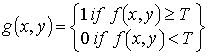

g(x,y) adalah citra biner dari citra grayscale
f(x,y), dan T menyatakan nilai ambang. Nilai T memegang peranan yang sangat penting dalam proses pengambangan. Kualitas hasil citra biner sangat tergantung pada nilai T yang digunakan.

Metode Otsu
Metode Otsu menghitung nilai ambang T secara otomatis berdasarkan citra masukan. Pendekatan yang digunakan oleh metode Otsu adalah dengan melakukan analisis diskriminan yaitu menentukan suatu variabel yang dapat membedakan antara dua atau lebih kelompok yang muncul secara alami. Analisis Diskriminan akan memaksimumkan variabel tersebut agar dapat memisahkan objek dengan latar belakang.
Misalkan nilai ambang yang akan dicari dinyatakan dengan k. Nilai k berkisar antara 1 sampai dengan L, dengan L = 255. Probabilitas untuk piksel i dinyatakan dengan :


dengan ni menyatakan jumlah piksel dengan tingkat keabuan I, dan N menyatakan banyaknya piksel pada citra.
Nilai momen kumulatif ke-nol, momen kumulatif ke-satu, dan nilai rata-rata
berturut-turut dapat dinyatakan sebagai berikut :


Nilai ambang k dapat ditentukan dengan memaksimumkan persamaan:

dengan


Berikut Source Code Delphi Thresholding Otsu :


procedure TEnrollForm.Threshold(Image:TBitmap);
const level=255;
var
histogram: array[0..255] of integer;
PH: PByteArray;
TotalMean, Variance, maxVariance, zerothCumuMoment, firstCumuMoment : real;
i,j,k: integer;
p: PByteArray;
threshold:byte;
area: Word;

begin
for i:=0 to level do
begin
histogram[i]:=0;
end;
for i:=0 to Image.Height-1 do
begin
PH:=Image.ScanLine[i];
for j:= 0 to Image.Width-1 do
begin
inc(histogram[PH[3*j]]);
end;
end;

//compute otsu method
threshold:=0;
totalMean := 0;
maxVariance := 0;
firstCumuMoment := 0;
zerothCumuMoment := 0;
area := Image.Height * Image.Width;

for k:= 0 to level do
TotalMean := TotalMean + (k * histogram[k] / area);

for k:= 0 to level do
begin
zerothCumuMoment := zerothCumuMoment + histogram[k] / area;
firstCumuMoment := firstCumuMoment + (k * histogram[k] / area);
variance := totalMean * zerothCumuMoment - firstCumuMoment;
variance := variance * variance;

if ((zerothCumuMoment <> 0) and (zerothCumuMoment <> 1)) then
begin
variance := variance /(zerothCumuMoment * (1 - zerothCumuMoment));

if (maxVariance < variance) then
begin
maxVariance := variance;
threshold := k;
end;
end;
end;

for i:=0 to Image.Height-1 do begin
p:= Image.ScanLine[i];
for j:=0 to Image.Width-1 do begin
for k:=0 to 2 do
if (p[3*j])and (p[3*j+1]) and (p[3*j+2])>threshold then
p[3*j+k]:= 255
else
p[3*j+k]:= 0;
end;
end;
ImgThres.Picture.Bitmap:=Image;
end;

Sunday, March 22, 2009

Grayscale Image / Gambar Keabuan

Tujuan teknik grayscale adalah untuk mendapatkan citra keabuan. Untuk mendapatkan citra keabuan tersebut digunakan rumus:

I(x,y) adalah level keabuan pada suatu koordinat yang diperoleh dengan mengatur komposisi warna R (merah), G (hijau), B (biru) yang ditunjukkan oleh nilai parameter dan. Secara umum nilai dan adalah 0.33. Nilai yang lain juga dapat diberikan untuk ketiga parameter tersebut asalkan total keseluruhan nilainya adalah 1.

Berikut contoh Source code Grayscale Image di Delphi. Input adalah image dalam format TBitmap

procedure TFrm.Grayscale(Image:TBitmap);
var
i,j,k: Word;
p: PByteArray;

begin
Image.PixelFormat:= pf24Bit;
for i:=0 to Image.Height-1 do begin
p:= Image.ScanLine[i];
for j:=0 to Image.Width-1 do begin
p[3*j]:= (p[3*j]+p[3*j+1]+p[3*j+2])div 3;
for k:=0 to 2 do
p[3*j+k]:= p[3*j];
end;
end;

Citra1.Picture.Bitmap := Image; // membuat Citra 1 menjadi grayscale.
end;


Semoga Membantu..

 
Design by Free WordPress Themes | Bloggerized by Lasantha - Premium Blogger Themes | Sweet Tomatoes Printable Coupons