Showing posts with label Audio. Show all posts

Monday, February 1, 2010

Linux applications: Part 2 - Music Players

In response to my last post listing Linux applications, I received a couple of comments asking whether there are any applications like iTunes for Linux. There are a number of applications that offer many of the features of Apple's music player. Here are a few of the most popular of them.

They all include roughly the same set of features such as support for audio file types and digital audio players, including the iPods. They retrieve album, submit played track information to Last.fm, and supports podcasts. With such software, look and feel are all important, so I have included screenshots and links to the homepages of each. Since they are all free why not audition them all and find the one that best suits your requirements.


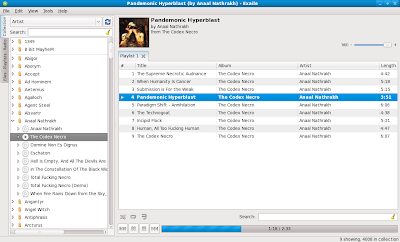


Personally, I prefer a more svelte audio player like Winamp. Since there is no native Linux version of that, I use Audacious, which supports some Winamp skins. That is probably just as well because the default skins are not great.


More Linux applications soon.

Wednesday, August 13, 2008

Better Music, From Your PC, for Free - Easy-to-use tool helps ensure that your high-quality music sounds the way it should

High-quality PC audio is important to me, as I spend a lot of time listening to music on my desktop. In previous columns I've discussed the aural advantages of lossless audio codecs (like FLAC), discrete sound cards, and specialty music player software. Alas, even with all of those tools installed and properly configured, it is possible to suffer less-than-optimal sound on a Windows XP-based PC, as the operating system has a tendency to muck with music without your consent. Happily, a free, easy-to-use program, called ASIO4ALL, addresses this annoying Windows habit. (I'm told that the app can improve sound on Vista PCs, too, but I have not tested that claim.)

So how does XP interfere with your music? Simply put, the OS hands off audio chores to a piece of software called the Kernel Audio Mixer, or Kmixer, which automatically resamples audio files--oftentimes rather poorly--creating output that differs from the original recording. The effect is typically pretty subtle, and if you are listening to low-bit-rate MP3s you probably won't notice it.

However, if you're like me and you listen to lossless audio because you prefer to hear music the way the artist recorded it, you can use ASIO4ALL to do an end run around Kmixer, sending an unadulterated version of the audio right to your sound card. Musicians who record using PC hardware have long used ASIO, which stands for Audio Stream Input Output. Mid- to pro-level hardware may include drivers with ASIO support, but lower-end hardware--such as integrated motherboard audio chips and some basic sound cards--tend not to. So an enterprising gentleman named Michael Tippach created ASIO4ALL. He says the original goal was to address the latency issues that Kmixer introduced into the audio recording process. It was only later that audiophiles started using it to achieve better audio from their PCs.

To use ASIO4ALL, you'll need a compatible media player, such as foobar2000 or WinAmp (Windows Media Player and iTunes don't support it). I recommend installing foobar2000. You also need to download the foobar2000 ASIO DLL (click on the Optional Components link on the foobar2000 site); the DLL file should go into foobar2000's Components folder on your hard drive.

Next, download and install ASIO4ALL itself. Launch it by clicking on its Off-line Settings option in the Start menu. You should see your computer's audio device highlighted; if you have more than one, select the one you intend to use.

Now launch foobar2000. Navigate to File, Preferences, and choose Output. In the resulting dialog box, select Output (under Playback), and then ASIO Virtual Devices, before clicking the Add New button. A new dialog box should appear with your audio device and various mapping coordinates (left, right, and so on) listed. Select one, then click OK, Save All, and Close.

Return to your music collection, fire up your favorite reference (highest quality or original recording) tunes, and start listening. You should hear a noticeable improvement in audio quality with even the default (Simple) settings.

I'm confident you'll get better audio through ASIO4ALL. And remember: It doesn't change anything in your drivers, so if you're not happy with the results, you can simply stop using it.

more.............


Sunday, February 10, 2008

Tag those audio files and show them to the World

If you have a large collection of MP3s, WMAs and other audio files, you probably have quite a few where the tag information isn't set up properly. In other words, they don't come up with the correct track name or artist in your media player.


Editing these tags manually can be a laborious task, but fear not, the contributers at MusicBrainz offer a solution to your problem. As they say themselves:
MusicBrainz is a community music metadatabase that attempts to create a comprehensive music information site. You can use the MusicBrainz data either by browsing this web site, or you can access the data from a client program — for example, a CD player program can use MusicBrainz to identify CDs and provide information about the CD, about the artist or about related information. You can also use the MusicBrainz Tagger to automatically identify and clean up the metadata tags in your digital music collections.

The website has a number of applications that you can download which access the database. The one I found most useful was Picard, which provides an interface to search the database and use the information to rename and tag the audio files with the correct information. I didn't find Picard particularly intuitive to use; however, the authors have provided some quality documentation to instruct users on how the application works. Here are a few images of the software in action. If anyone struggles with the software after reading the instructions, leave a comment on this post and I will record and post a video of how to use it.

Here is that list of badly tagged mp3 files in Picard.

Using the search facility on Picard opens up a listing of matching information on the MusicBrainz website. I navigated to the appropriate album listing, and pressed the green 'Tagger' button.

Picard presented the information in the right pane. I selected the files in the left pane, pressed the 'Scan' button, and when the list in the left pane was empty I pressed 'Save' to make the changes.

Here is the file listing with the correct tag information in place.

I finally decided that I needed to create and correct the tag information on my audio files after becoming sick and tired of some of them not registering with Audioscrobbler, which is the software used on the music based social-networking site LastFM. The software records all the music you play on your computer, and even some portable audio players, and creates charts from the information. You can see my page here. The site enables you to create fancy widgets to put on your blogs, social networking pages and other websites too, like this one:


So get those audio files tagged and let the World that you are obsessed with prog rock.

Saturday, September 29, 2007

"Can you hear it?" Three Freeware Audio Applications

Winamp has long been a popular mp3 player developing a large user community. Members of this community submit a plethora of skins, plug-ins and other add-ons to the Winamp website. Winamp also offers support for iPods and other mp3 players, and functions as an adequate video player.

If you have ever made an audio mix CD from mp3 files, you have probably been annoyed to find that all the tracks play at different volume levels, spoiling that overall ambiance you wished to create with your selection of top tunes. If this problem is a source of vexation for you, try mp3gain. With this program you can quickly balance the levels of a selection of mp3 files, so as to further impress that prospective partner, work colleague, or friend with your eminently good taste.

The best freeware audio editor available is Audacity. It provides support for mp3 files - as well as a number of other formats - and offers enough editing features and effects to meet most user's needs. Unfortunately, Audacity does not support proprietary formats such as wma, but there are plenty of audio file converters available like dBpoweramp.

 
Design by Free WordPress Themes | Bloggerized by Lasantha - Premium Blogger Themes | Sweet Tomatoes Printable Coupons