

 12:25 AM
 ari sari


Ipad

 Posted in: Apple iPad
Replace these every slider sentences with your featured post descriptions.Go to Blogger edit html and find these sentences.Now replace these with your own descriptions.

Replace these every slider sentences with your featured post descriptions.Go to Blogger edit html and find these sentences.Now replace these with your own descriptions.

Replace these every slider sentences with your featured post descriptions.Go to Blogger edit html and find these sentences.Now replace these with your own descriptions.


 DAISYtoEPUB is extremely easy to use and within seconds the file is quickly converted. Once you have used DAISYtoEPUB to convert the file getting the books onto the various aforementioned devices is quite straightforward. This is not the case if you are using the Kindle. While the Kindle supports a number of different eBook formats, unfortunately it does not support ePub. However, not all is lost in the conversion. You see, using the free application Calibre, you can bring the ePub book into the Calibre library and convert it to the Mobi format which is in fact supported by the Kindle. Using Calibre you simply drag the ePub formatted book into the Calibre Library and using the Conversion tool save it as Mobi formatted file. From here I simply plugged my Kindle 3 into the computer and sent the file from the Calibre application to my Kindle 3. It really was that easy. Now when I opened my Kindle I had the NIMAS file in the Kindle and using the text to speech feature the Kindle could access and read the pages, complete with the graphics.

 On Monday, I had a chance to work with a group of Occupational Therapists at Pediatric Potentials of West Essex, LLC in Livingston , NJ. I have worked with Laurice Kalb, OT, and Owner and Director of Pediatric Potentials for over 10 years and consulted to her in developing Computer Campus, a division of her occupational practice that is dedicated to helping students with learning differences to maximize their potential using the computer. At Computer Campus, students can learn to type and use a wide array of different technologies that can help support their learning in the classroom. It has been awhile since I had visited her center and worked with her wonderful group of occupational therapists to show them the latest and greatest technologies.
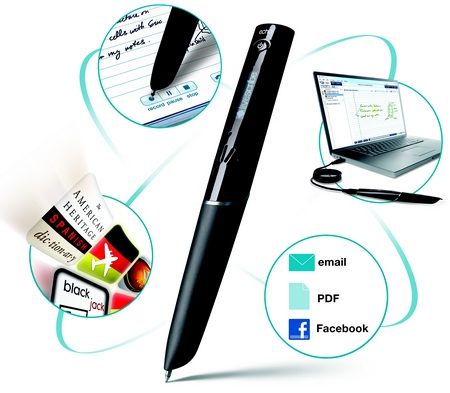 interested in taking a look at how they could use the Livescribe Smartpens in their practice to teach students how to take notes. I did a demo of the Echo Smartpen and described the various ways it could be used not only for taking notes but as a tool to support students who may need some audio supports for learning and for taking tests. In the first scenario I printed a map with the counties of New Jersey directly onto the dot paper and then simply added some dots. Once the dots were added I hit the Record button and then recorded some facts about the counties. This really brings the page to life and can be a wonderful support for students who learn best by providing them with this type of material. In the second scenario, I showed them how they could cut up the dot paper and place a small audio dot on the page next to a test question and record the question so that a student with a reading disability could access the test independently. When you think how huge that is both for schools and for the student you can begin to see the value that tools like the Echo Smartpen can bring to the classroom. With a little creativity and imagination the Livescribe Echo Smartpen can provide a student with a wide range of supports in their learning and that's even before you think about pencasts!
 I have been using the Echo Smartpen for the past week and to say the least I am very impressed with the second generation pen from Livescribe. Livescribe evidently listened to customer feedback and made a more ergonomic offering with this release. With its new shape and design the pen feels much more comfortable in my hand. Adding the soft rubberized grip gives the pen a good feel when writing. With the new design the pen will not be able to roll of your desk as was the case with the Pulse pen. The Echo Smartpen is now available with 4 GB ($169) or 8 GB($199) of memory which would allow you to store and incredible amount of audio notes and apps which are available from the Livescribe Online Store. The 8GB Echo Smartpen is capable of storing over 800 hours of audio depending on the quality of the audio recorded. In any case the Echo Smartpen can store a huge amount of audio.
 of the new features which I believe will be used a great deal is the ability to create custom notebooks from selected pages you have downloaded. This works very similarly to how you can create Play Lists in iTunes. Simply create a Custom Notebook and drag pages into it. This gives you the ability to group pages of your notes as you see fit so that you can quickly access them. Having the ability to search through your notes to find specific information is one of the most powerful aspects of this system. Of course if you like you can listen to any of your pages played right from the desktop.
 ucators will be able to export saved notes as a Pencast, PDF, orImage file. If you decide to save your notes as a Pencast anyone who has the Livescribe Desktop software will be able to view and listen to the recording. You can if you like also just download the audio portion of your pages which gives you another way to share information that was recorded. What I am really excited about is the announcement that I will be able to share my recordings as a PDF pencast that will be able to viewed using the free Adobe Acrobat Reader. I am told that this feature will be available sometime in the Fall. Likewise, Livescribe is working on an app for the iPad that will let me view my pencasts on the Apple iPad to be released later this summer. For those of you who missed my post about hand writing recognition and the Echo Smartpen click here to see how easy it is to convert your handwriting to editable text. It is really exciting to think about all of the possibilities for extending learning in the classroom with the Livescribe Echo Smartpen.
 One of the truly marvelous apps for the iPad has to be Dragon Dictate from Nuance. I have been using Dragon Dictate since I got my iPad and it is hard to believe how accurate it is for transcribing your voice to text. What is more amazing is that there is no need to do any training of the sort. Using cloud based processing Nuance is able to capture your voice file process it in the cloud and return your transcription back to the application in seconds. If you have not tried it out on your iPad, iPod Touch or iPhone you should definitely download it and give it a try- the price is right. Right now the app is free! Nuance just released version 2.0 of Dragon Dictate which now lets you quickly send your text to Facebook and Twitter from a small drop-down palette in the program. I tried out this feature just yesterday evening and it works like a charm.
 I have been using the iPad for the past 6 weeks or so and learning the ins and outs of this innovative and portable tool. I have noticed over the past couple of weeks that I am beginning to think differently about how I access, create and store my information. While not exactly a "digital native" I still prefer to read paper based books and magazines but I see myself beginning to shift as I load more and more of my PDF's into iBook and read them at my leisure. I keep my iPad in my bureau next to the bed and have access to it whenever I need it. I have recently begun to read the PDF's that I have loaded and love the fact that many of them have embedded URL's which link to the internet for more information. Being able to zoom in on the text has been really fantastic and makes it a lot easier for me to read the text. The iPad screen is nice and bright and makes reading a really enjoyable experience. Just this past week I received a notice to renew my subscription to PC Magazine and I was offered a two year digital subscription for about 63 cents an issue. Having an iPad made this an easy decision to make and as I subscribe to other magazines I can see the trend to move all my subscriptions to the digital format. Prior to having the iPad I would not have thought twice about purchasing a digital subscription to a magazine. I have found over the years that reading on a Mac or PC is cumbersome and I would often print out longer documents. However, with the iPad this is a real game changer for me, as I look to move more of my magazine subscriptions to a digital format.
 er the past couple of weeks I come to learn the value of being able to store information and synchronize my data. I have been using iThoughtHD a mind mapping app on my iPad to do more of my work and really enjoy the ability to be able to export my mind maps to Box.net in many common mind mapping formats that I can access from my desktop mind mapping applications. The integration is seamless and really delivers the user extra value. The same can be said for ToDo for iPad, a task management app that seamlessly integrates with Toodledo on the web withthe touch of an synchronize icon. Moving forward I can see developers are beginning to think about the integration from the desktop computer to the web that can then be accessed with an iPad.
 I have been working with Context Discovery's web based summarization tool (Summarizer) for the past couple of months and today I had a chance to test it out on my iPad. Context Discovery has transformed their summarization tool and now it works in the cloud summarizing websites by simply entering in a URL. Once the URL is processed- Summarizer will go out to the website and identify the most important key words and pull out the most important content that is ready for you to view. On the left you can get a glimpse of what it looks like on the iPad. I was very excited to see that Context Summarizer worked flawlessly on the iPad and processed the request very quickly. Once the contents was processed I proceeded to click on the MindManger Export and within seconds iThoughtsHD, my resident mind mapping application on my iPad opened the contents and displayed the mind map. It is nice to know that I can now use Context Summarizer and iThoughtsHD on my iPad to summarize the contents of web sites.

 I have had my iPad WiFi for about a month now and have enjoyed using the Ipad WiFi for getting my email, surfing the web and of course playing Scrabble. In preparation for attending the ISTE 2010 Conference I decided to see what it would be like to travel with the iPad instead of my netbook which is what I usually do. While the virtual on-screen keyboard is alright for entering web sites and the such, I decided to take my Apple Bluetooth keyboard just in case. For one thing the iPad weighs almost nothing and there is not the need to take a lot of the other accessories that I would normally have taken with me. It is a rather small package and is really great for travel. It is so light you sometime forget that you are actually carrying a computer.
 Two weeks ago I went out and purchased an Apple iPad to see what all the excitement was about. I have to say it is a very seductive device and one that is hard to put down. I am enamored by its potential as a tool for some of the students that I work with who have writing, reading and organizational difficulties. The iPad is very fast at doing almost anything you want it to do (except play Flash media) and the battery life is really incredible.
 ell as insert task completion icons to keep track of tasks as they are completed.


